Google Sheets
The actions below reflect exactly the functions used to control Google spreadsheets.
Important: action return keys become robot state variables — use the exact key name prefixed with $. For example, if an action returns {'updated_range': 'Sheet1!A2:C3'}, access it in flows as $updated_range.
Only functions decorated with @decorators.robotaction are documented here.
After you start using these actions, you need a service account and share your spreadsheet with the service account.
Enable Google Sheets API and create a service account
To use the Google Sheets actions, first create a service account.
-
Open the Google Cloud console and select the project where you want to enable the Google Sheets API and create the service account.
-
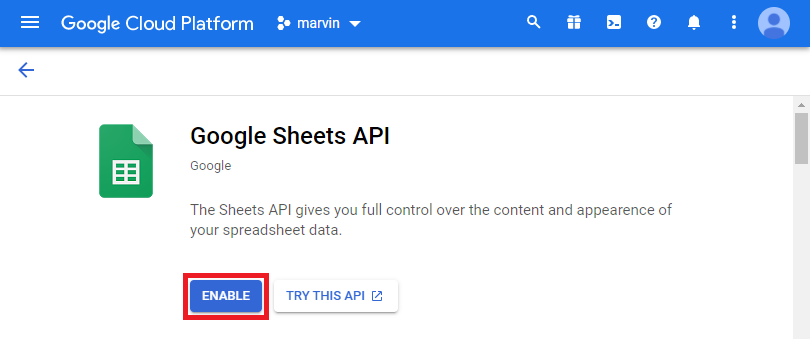
Open Google Sheets API in the API library and enable the API.
-
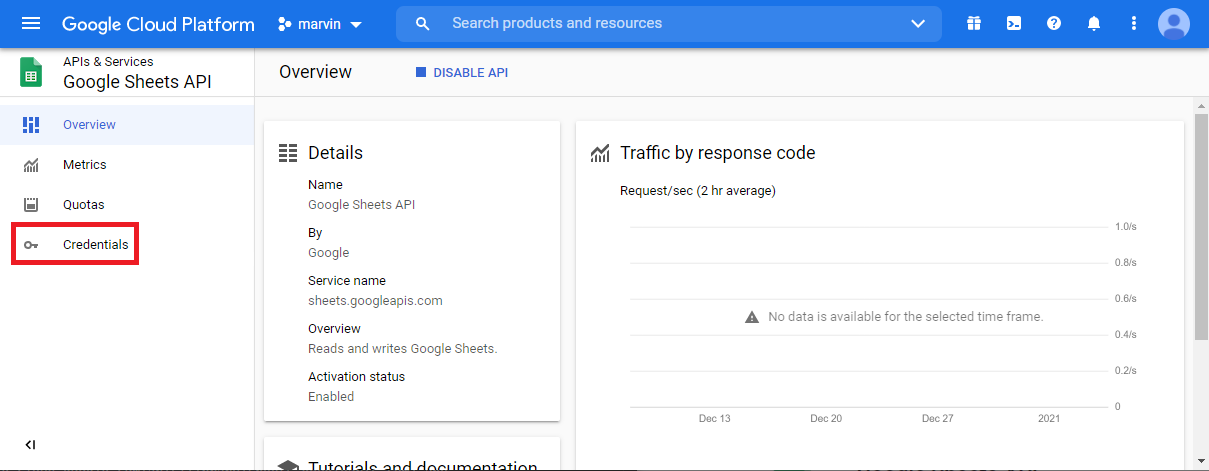
Click Credentials.
-
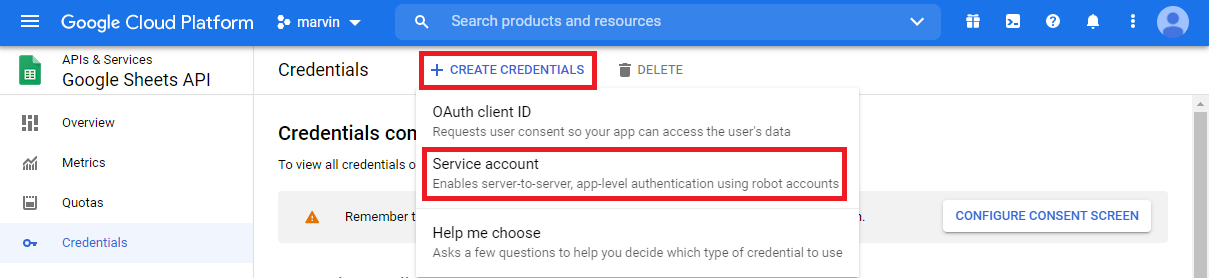
Click Create credentials, then Service account.
-
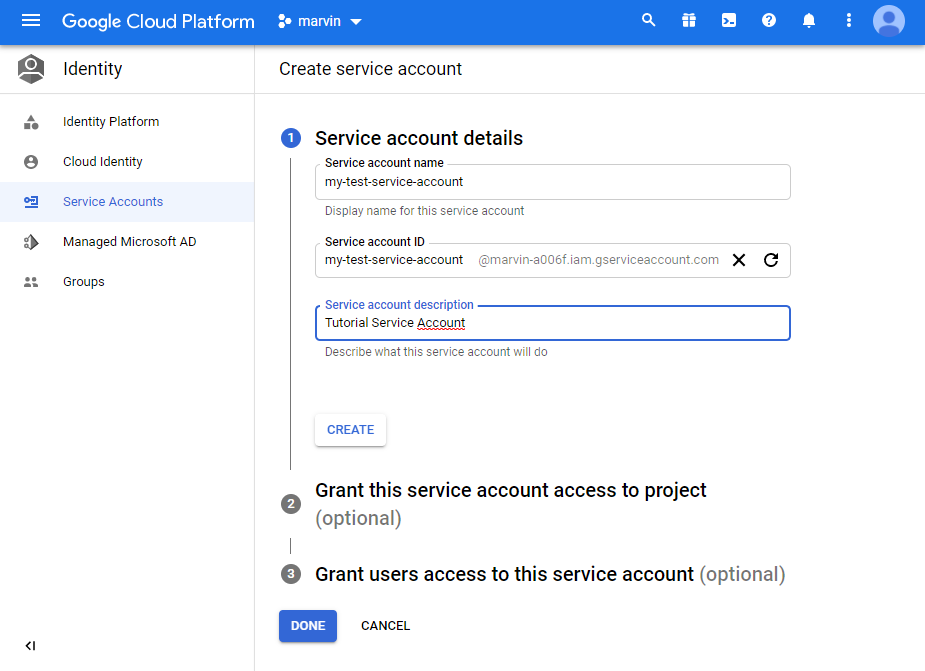
Name your new Service account, complete the requested fields, then click Done.
-
The next two steps are only needed if you want finer control over this service account’s grants and access. If you do not need that, click Done on those steps.
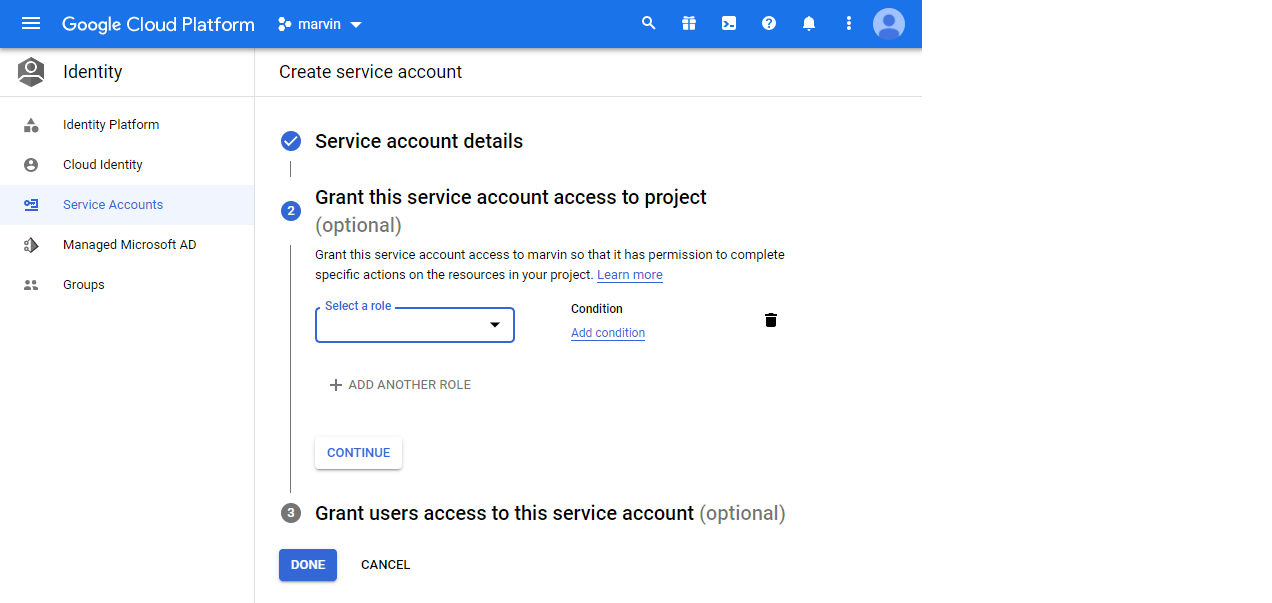
-
After the service account is created, on the Credentials page, open the service account you created.
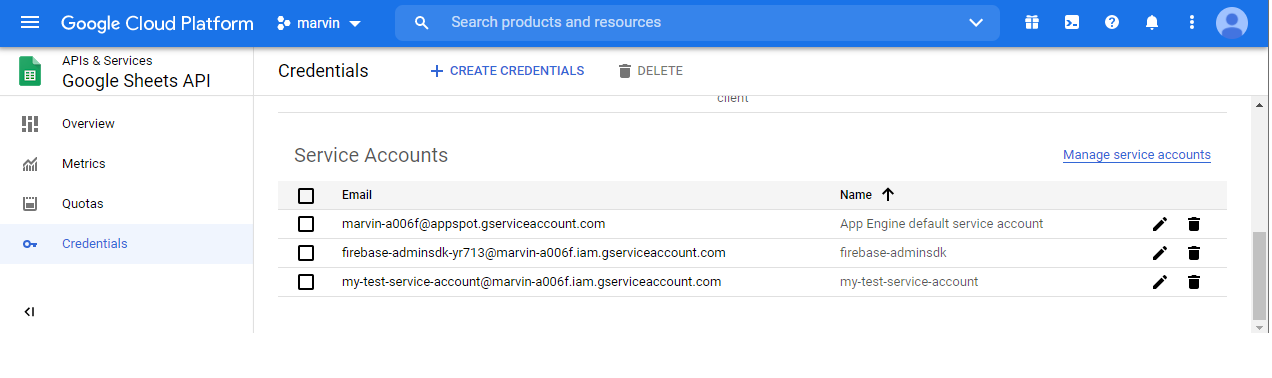
-
Add a key to this service account: click Add key, then Create new key.
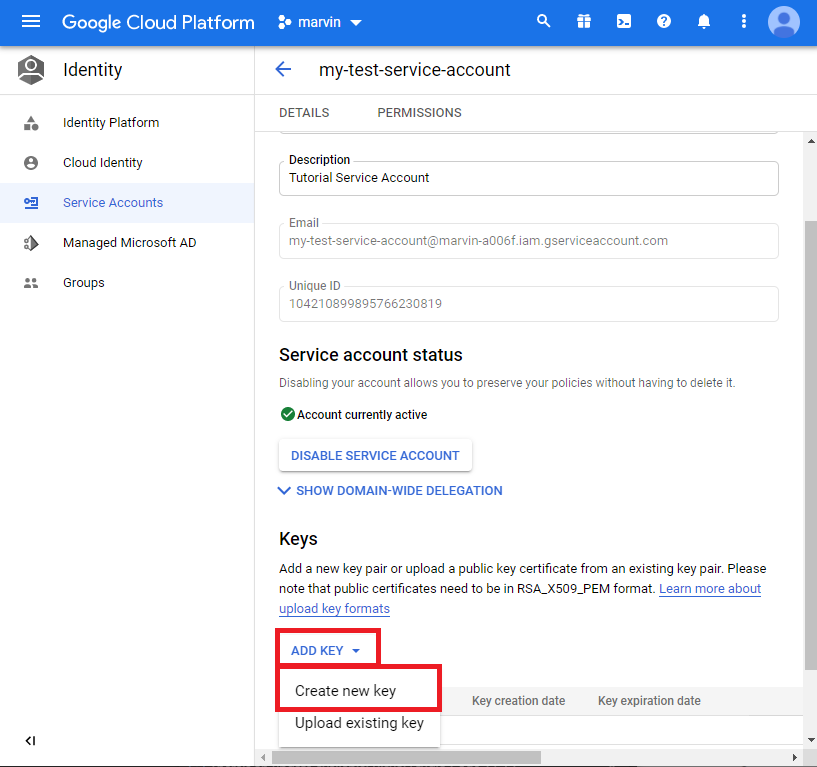
-
Choose JSON, click Create, and wait for the JSON file to download.
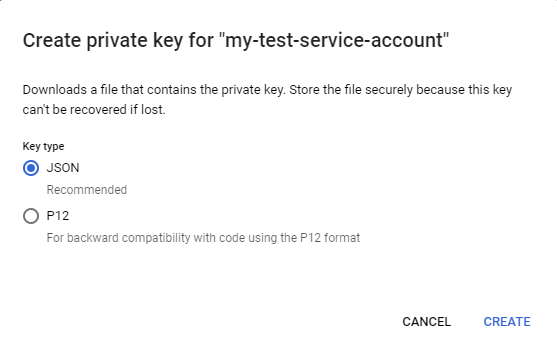
-
Share your Google spreadsheet with the service account. Grant edit access if you want Marvin to modify the sheet.
Share the spreadsheet with the service account
-
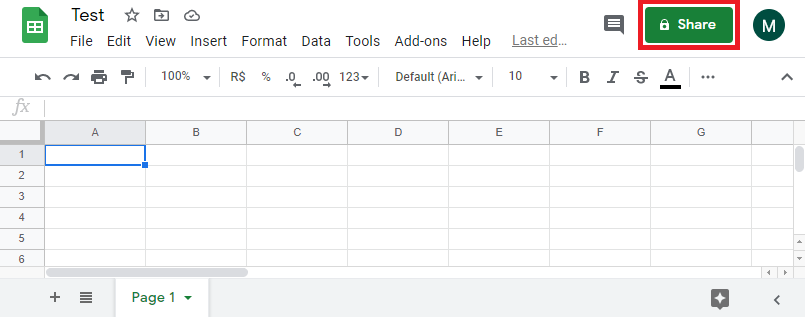
In Google Sheets, click Share.
-
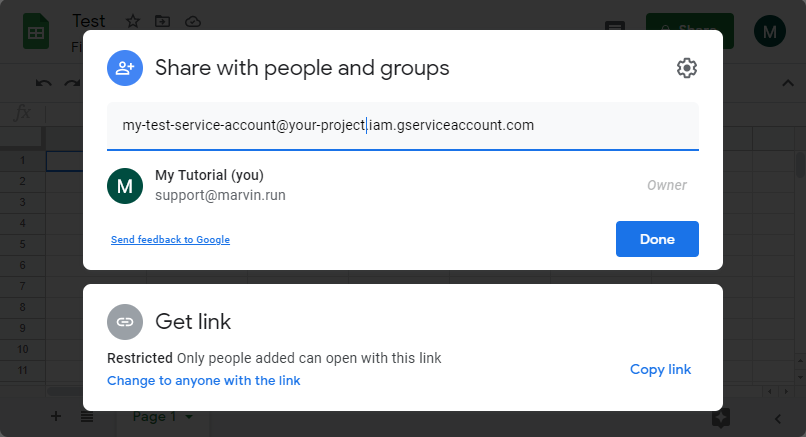
Under Add people and groups, enter your service account email address.
-
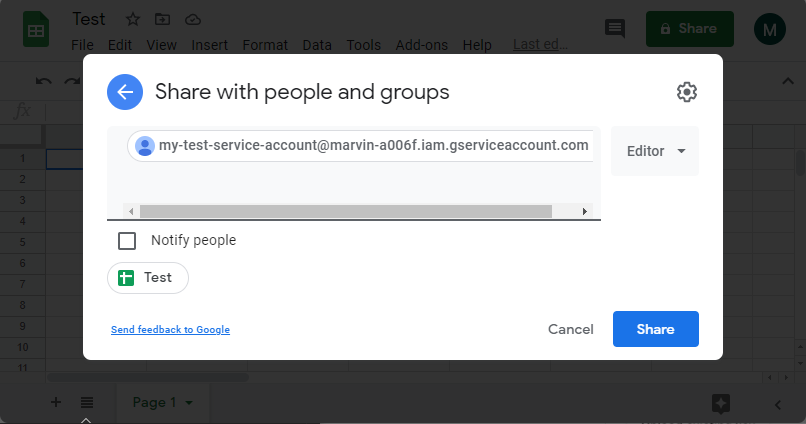
Confirm the service account has the right permissions. For Marvin to change, delete, or insert data, set the role to Editor.
Actions
google.sheets.append
If you set cell_range to A1, Marvin avoids overwriting existing data and appends the new content on the first blank row after A1, always inserting after the last row of the sheet.
Appends values at the end of the given range (uses spreadsheet.current_sheet + cell_range).
Parameters:
spreadsheet— object returned bygoogle.sheets.open.cell_range— start cell or range (e.g.A1orA1:C1).line_values(optional) — list representing one row (e.g.['Col1','Col2']).grid_values(optional) — list of lists for multiple rows.value_input_option(optional, default'RAW') —RAWorUSER_ENTERED.
Return:
updated_range— string with the updated range (A1 notation).first_col— letter of the first column in the updated block.first_row— number of the first row in the updated block.last_col— letter of the last column in the updated block.last_row— number of the last row in the updated block.
Exceptions:
InvalidParameters— when neitherline_valuesnorgrid_valuesis provided.GoogleSheetsException— error calling the Google Sheets API.
Example:
google.sheets.append($spreadsheet, "A1", line_values=["Name","Email"])
updated_range = $updated_range
first_row = $first_row
google.sheets.delete_rows
Deletes rows from start through end (inclusive). If end is omitted, only start is removed.
Parameters:
spreadsheet— object returned bygoogle.sheets.open.start— first row to delete (1-based).end(optional) — last row to delete.
Return:
- This action returns an empty dictionary (no state variables are created).
Exceptions:
GoogleSheetsException— error performing the operation via the API.
Example:
google.sheets.get_cell
Reads values from the given range and returns values with coordinates for the block.
Parameters:
spreadsheet— object returned bygoogle.sheets.open.cell_range— A1 range (e.g.B2:C4).value_render_option(optional, default'FORMATTED_VALUE') —FORMATTED_VALUE,UNFORMATTED_VALUE, orFORMULA.
Return:
values— matrix (rows × columns) of values returned by the API.first_col— letter of the first column in the returned block.first_row— number of the first row in the returned block.last_col— letter of the last column in the returned block.last_row— number of the last row in the returned block.
Exceptions:
GoogleSheetsException— API error.
Example:
google.sheets.open
Creates a connection to the spreadsheet and returns the Spreadsheet object used by the other actions.
To use any Google integration, you need a GCP service account JSON file. To create the credential, follow Enable Google Sheets API and create a service account.
Parameters:
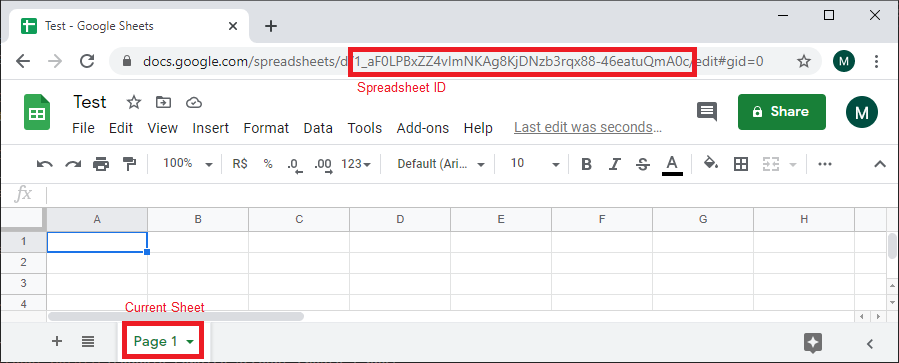
spreadsheet_id— spreadsheet ID (from the URL).current_sheet— sheet (tab) name used by default.service_account_path— path to the service account JSON asset.
Return:
spreadsheet—Spreadsheetobject returned by the action.
Exceptions:
GoogleSheetsException— error loading spreadsheet metadata or authenticating.
Example:
google.sheets.update
Updates (replaces) values in the given range.
Parameters:
spreadsheet— object returned bygoogle.sheets.open.cell_range— range to update (e.g.A1:C3).line_values(optional) — list representing one row.grid_values(optional) — list of lists for multiple rows.value_input_option(optional, default'RAW') — how input values are interpreted:
| Value | Description |
|---|---|
| RAW | Values are stored as entered; they are not parsed. |
| USER_ENTERED | Values are parsed as if typed in the UI. Numbers stay numbers, but strings may become numbers, dates, etc., following the same rules as typing into a cell in Google Sheets. |
Return:
updated_rangefirst_col_updatedfirst_line_updated# legacy key (deprecated) — same asfirst_row_updatedfirst_row_updatedlast_col_updatedlast_line_updated# legacy key (deprecated) — same aslast_row_updatedlast_row_updated
Exceptions:
InvalidParameters— when neitherline_valuesnorgrid_valuesis provided.GoogleSheetsException— API error.
Example: